Meta App Review for publishing apps: a step-by-step guide
Meta App Review is the check Meta runs before your app can use a permission with people who have no role on it, such as the businesses that sign up to your scheduling tool. For a publishing app that means Business Verification, one real API call per permission, a description and a screen recording for each permission, and a decision that Meta says should arrive within a week.
This guide covers Meta App Review for apps that publish to Facebook Pages, Instagram and Threads: which permissions to request, the steps in the order the dashboard asks for them, what makes Meta reject a submission, and a free checker in JavaScript and Python that reviews your submission before you send it.
Technical review: 28 November 2026, against Meta's App Review documentation and the Permissions Reference for Graph API v27.0, the latest version according to the Graph API changelog (released 4 November 2026).
Key takeaways:
No review if only people with a role on the app use it. Standard Access covers your own Pages and accounts.
Publishing for other businesses needs Advanced Access, which means App Review per permission and Business Verification.
Every permission needs a successful API call in the 30 days before you submit, its own description and a screen recording that shows it working.
Dependencies count: instagram_content_publish needs instagram_basic, which needs pages_read_user_content, and Meta's publishing guide does not mention that last one.
Most rejections are avoidable: an app reviewers cannot reach, a missing recording, a permission for a future feature or a fake test account.
Do you need Meta App Review?
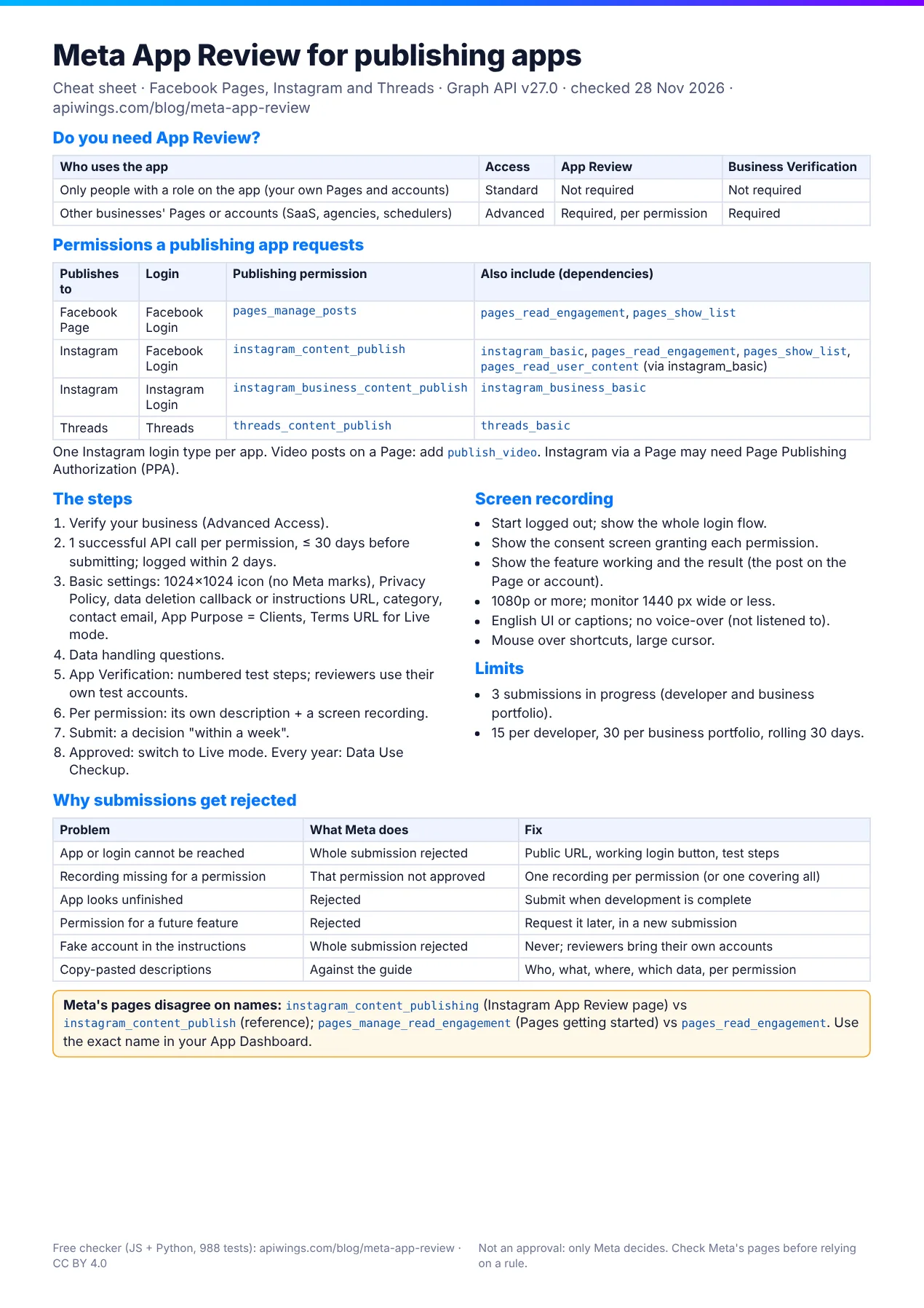
You need App Review only when people without a role on your app will use it. Meta's App Review page says that if the app is only used by people with a role on it, or a role in a business that has claimed it, App Review is not required. Unapproved permissions still work for those people, so you can build and test everything first.
Meta calls the two cases Standard and Advanced Access. According to the access levels page, Business apps get Standard Access to every permission automatically, and Advanced Access is approved permission by permission through App Review:
| Your case | Access level | App Review | Business Verification |
|---|---|---|---|
| You publish to your own Pages and accounts, and everyone using the app has a role on it | Standard | Not required | Not required |
| Other businesses connect their Pages or accounts (a SaaS product, an agency tool, an AI agent for clients) | Advanced | Required, for each permission | Required |
App mode is a separate switch. New apps start in Development mode, which can only request permissions from people with a role. Meta's app modes page says to switch to Live mode only after development and App Review are complete, and warns that test posts made in Development mode become visible to everyone once the app goes live.
Which permissions a publishing app requests
Request the publishing permission and every permission it depends on. The Instagram App Review page is explicit: if a permission depends on another, the other one must be in the submission too. These are the publishing permissions and their dependencies according to the Permissions Reference:
| You publish to | Login | Publishing permission | Also request (dependencies) |
|---|---|---|---|
| Facebook Page | Facebook Login | pages_manage_posts | pages_read_engagement, pages_show_list |
| Facebook Login | instagram_content_publish | instagram_basic, pages_read_engagement, pages_show_list, and pages_read_user_content (a dependency of instagram_basic) | |
| Instagram Login | instagram_business_content_publish | instagram_business_basic | |
| Threads | Threads use case | threads_content_publish | threads_basic |
Three details change how you plan the submission:
One Instagram login per app. An app uses either Facebook Login or Instagram Login for Instagram, not both, so do not mix the two sets of permissions. Our Instagram API post guide compares the setups.
Page videos need one more permission. The Pages API posts guide adds publish_video for video posts, and the person must be able to perform the CREATE_CONTENT task on the Page.
Instagram through a Page can be blocked by PPA. The content publishing guide says an account connected to a Page that requires Page Publishing Authorization cannot be published to until PPA is completed. Approval does not fix that; your users do.
Meta's pages spell some permissions in two ways
We found three mismatches between Meta's own pages while preparing this guide. They matter because the App Dashboard expects the exact name, and copying from the wrong page sends you looking for a permission that is not there:
| Where | What it says | What the Permissions Reference says |
|---|---|---|
| Instagram App Review page | instagram_content_publishing and instagram_business_content_publishing | instagram_content_publish and instagram_business_content_publish |
| Pages API getting started | pages_manage_read_engagement | pages_read_engagement |
| Instagram content publishing guide (Facebook Login) | instagram_basic, instagram_content_publish, pages_read_engagement | instagram_basic also depends on pages_read_user_content and pages_show_list |
Our recommendation (APIWings), not Meta's: use the names in the Permissions Reference, check them against the list in your App Dashboard, and include pages_read_user_content when you request instagram_basic, with a description that says it is there as a dependency.
Meta App Review, step by step
The dashboard asks for things in a fixed order, and two of them take days you cannot skip: Business Verification and the API call log. Start those first. This is the order of Meta's submission walkthrough:
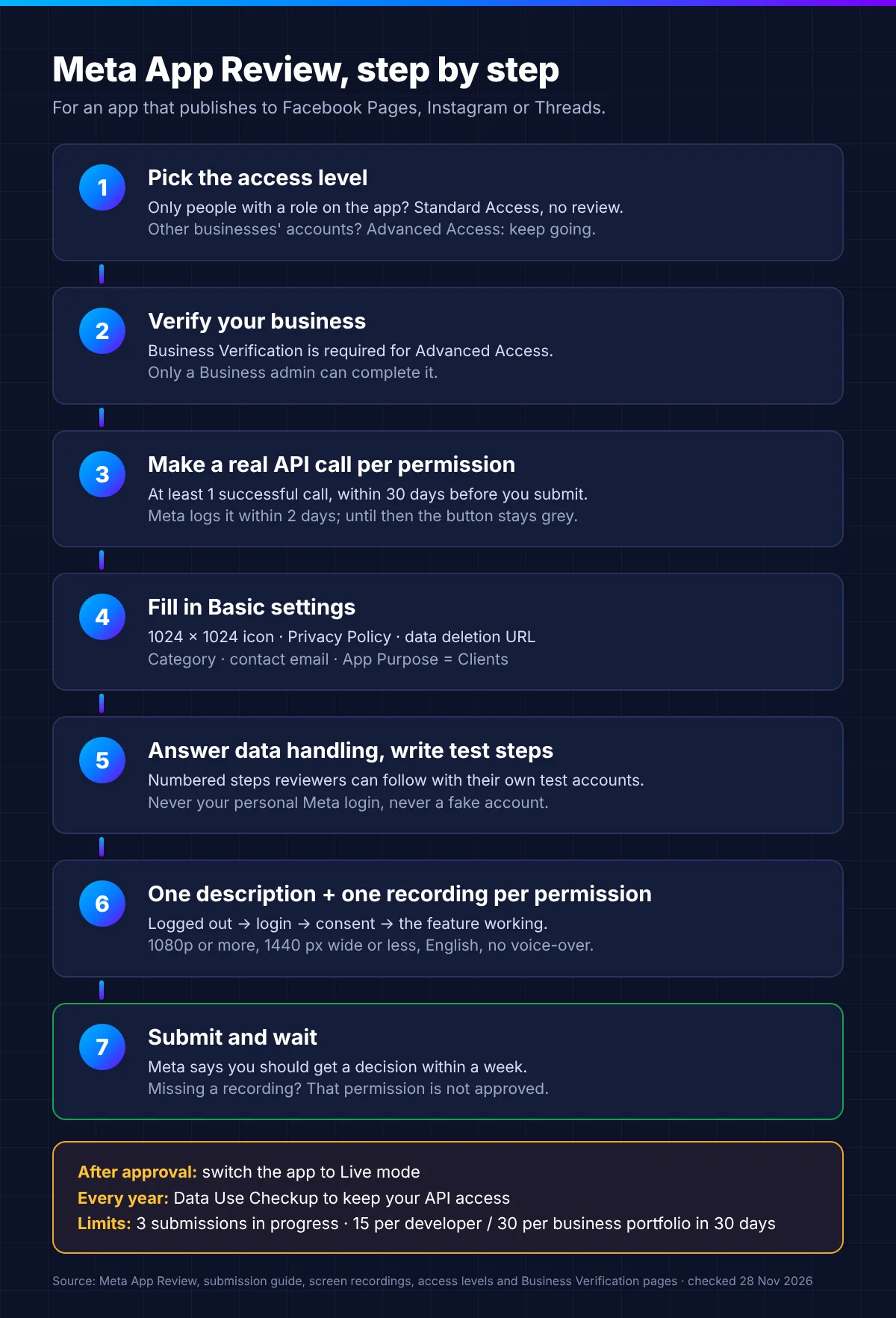
Verify your business. Advanced Access needs a business that has completed Business Verification. Anyone with an admin role on the app can connect it to a business, but only an admin of that business can complete the verification.
Make a successful API call with each permission. Meta asks for at least one per permission, within 30 days before you submit, from your app or the Graph API Explorer. The call is logged within 2 days, and the Request advanced access button stays grey until it is.
Complete Basic settings. A 1024 × 1024 icon without Meta trademarks, a Privacy Policy URL (Meta shows it on the login screen), a data deletion callback or instructions URL, a category, a contact email (review results go there) and App Purpose set to Clients. A Terms of Service URL is required for Live mode.
Answer the data handling questions. Meta evaluates the answers immediately; it can take up to 30 seconds.
Write the test instructions (App Verification). Number the steps a reviewer follows to reach each permission. Meta tests with its own test accounts: never include your personal Meta login. If your app has its own sign-in, add credentials for a test account of your app.
Describe each permission and upload a recording. One description per permission, never copied from another, and a screen recording that shows the permission in use.
Submit. After you accept the Platform Onboarding Terms, Meta says you should receive a decision within a week.
Our calculation, from Meta's own numbers: with Business Verification done, the shortest path is about 9 days: up to 2 days for the API call to be logged, then up to 7 for the decision. Each rejection adds at least another review cycle, so keep a buffer before any launch date.
How to write each permission description
A good description answers four questions in three to five sentences: who uses the feature, what the app does with the permission, where in the app it happens and what data you keep. Use the same screen names the recording shows. This is our example for pages_manage_posts:
Postwell publishes the posts a Page admin writes and schedules in our calendar. When the scheduled time arrives, our server creates the post on the Page with the text and images the person approved, then shows the live post link in the calendar entry.
For a dependency you do not use directly, say so. For pages_read_user_content, explain that Instagram publishing through Facebook Login requires it as a dependency of instagram_basic, and that the app does not display or store posts written by other people. Templates for every publishing permission are in the downloads.
How to record the screencast for Meta App Review
Reviewers follow your recording to test the app, so it has to show the whole path. From Meta's screen recording guide and the submission walkthrough:
Start logged out and show the whole login flow, up to logged in.
Show the consent screen where the person grants the permission.
Show the feature working and the result: the post created in your app and then visible on the Page or the Instagram account.
Record at 1080 or better with the monitor at 1440 px wide or less, so the interface is readable.
Use an English interface or English captions. Skip the voice-over: Meta says reviewers do not listen to audio.
Use the mouse rather than shortcuts and make the cursor larger.
One recording can cover several permissions, as long as every permission in the submission appears in it. A permission without a recording is not approved.
Why Meta App Review gets rejected
Some mistakes reject one permission; others reject the whole submission. These come from Meta's common mistakes page and the App Review page:
| Problem | What Meta does | Fix |
|---|---|---|
| Reviewers cannot access the app | Rejects the whole submission | A public URL, or clear instructions to reach the app |
| Facebook Login is missing or does not work | Rejects the whole submission | Test the login button logged out, in a private window |
| A fake Facebook account in the instructions | Rejects the whole submission | Never; reviewers bring their own test accounts |
| The app looks unfinished | Rejects the submission | Submit when development is complete |
| A permission for a feature you plan to build | Does not approve it | Ask for it in a later submission, when the feature exists |
| No recording for a permission | Does not approve that permission | One recording per permission, or one that covers all |
| Reviewers can test the app but not one permission | Does not approve that permission | Make the path to each permission visible in the steps |
Submission limits are not penalties, but they slow you down. A developer account and a business portfolio can each have 3 submissions in progress, and send 15 (developer) or 30 (business portfolio) in a rolling 30 days. Meta notes that combining the permissions a use case needs into one submission is faster than sending them separately.
Check your Meta App Review submission before you send it
Most of the problems above can be caught from the submission itself. Our free checker reads a JSON description of what you are about to send (settings, test instructions, each permission with its description, last API call and recording) and checks it against Meta's rules. It returns fix_first, review or no_issues_found for the submission and for each permission.
node meta-app-review-check.mjs example-submission.json

python meta_app_review_check.py example-submission.json
We ran it on a first draft for Postwell, a fictional scheduling app that asks for Advanced Access to publish to Facebook Pages and Instagram. It found seven problems before anything reached Meta:
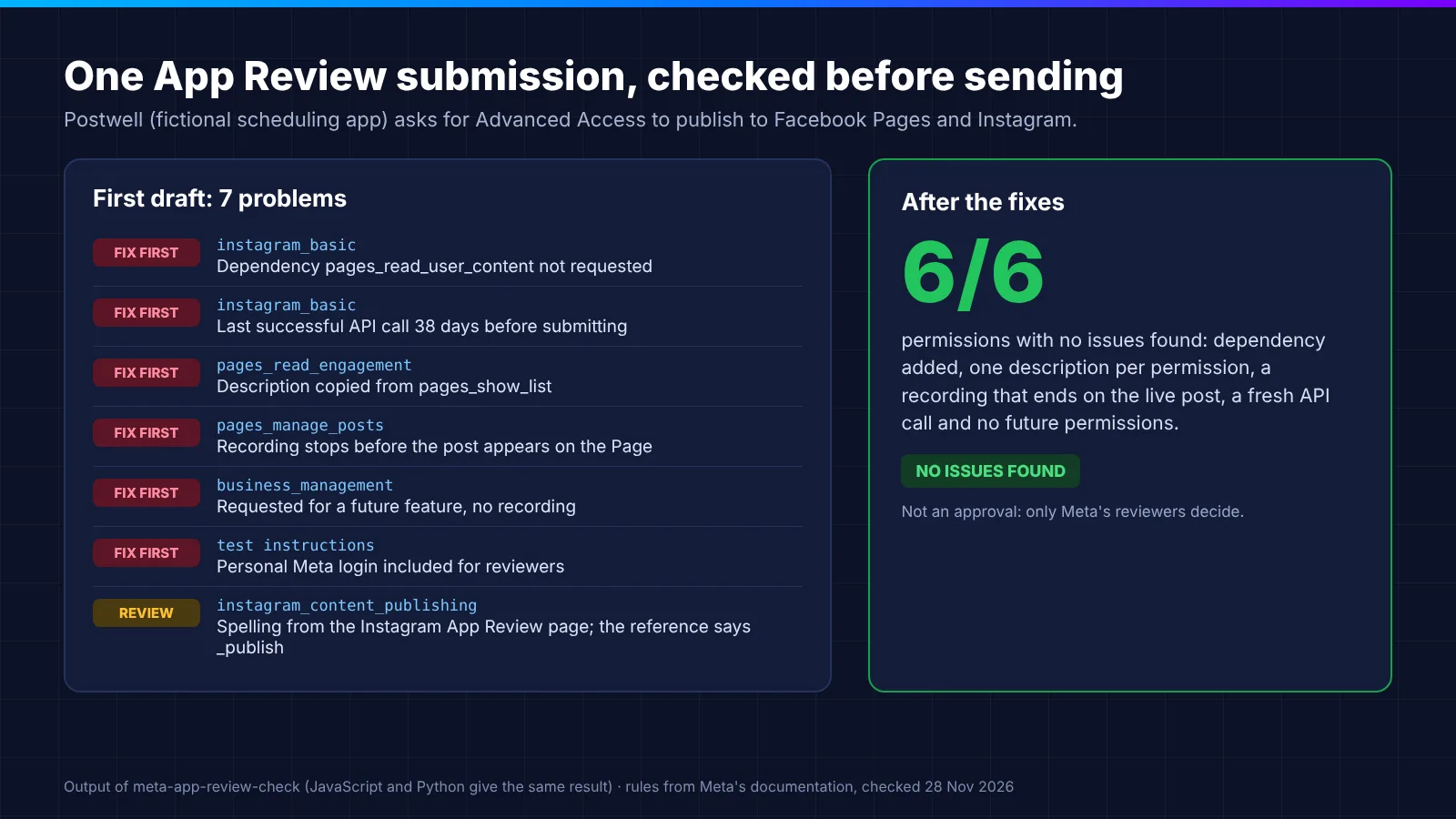
The fixed version adds pages_read_user_content, rewrites the copied description, ends the pages_manage_posts recording on the live post, repeats the instagram_basic call, drops business_management and removes the personal login. All six permissions then come back with no issues found.
A clean result is not an approval. The checker reads what you declare. It does not watch your recording or call Meta, and it cannot tell whether your use case fits each permission's Allowed Usage. This is how the work splits:
| The checker catches | Only Meta's review answers |
|---|---|
| Missing dependencies and permission names spelled two ways | Whether your use case fits the permission's Allowed Usage |
| API calls older than 30 days or too recent to be logged | Whether Business Verification passes |
| Copied, missing or very short descriptions | Whether reviewers can actually reach and use the app |
| Recordings missing, below 1080, not starting logged out, or not showing the grant or the result | Whether the recording is clear enough to follow |
| Personal or fake accounts, missing test steps, submission limits | Whether the app looks finished to a reviewer |
| Icon size, Privacy Policy, data deletion URL, category, contact email, App Purpose | Data handling answers and policy compliance |
Free resources
Everything is free to use and copy: the code under the MIT License and the data and templates under CC BY 4.0. Run the tests and you get the same numbers we did.
Checker: meta-app-review-check.mjs (JavaScript, Node 18+) and meta_app_review_check.py (Python, standard library only). Same rules, same results.
Rules with sources: meta-app-review-rules.json, every permission, dependency and limit with the Meta page it comes from.
Worked example: example-submission.json and example-submission-fixed.json.
Tests: 988 test cases. Run test-review-check.mjs or test_review_check.py: both print 988 of 988 cases pass.
Templates: app-review-templates.md, with permission descriptions, test instructions and a recording shot list.
Cheat sheet: a one-page PDF with access levels, permissions, steps and rejections. Notes in the README.
After approval: Live mode and the yearly Data Use Checkup
Approval is not the end. Once permissions are approved, any app user can grant them, and you switch the app to Live mode. Three things keep coming back:
Data Use Checkup every year. Apps that are live with a use case or have Advanced Access must complete this annual assessment: review permissions, certify allowed usage, answer data handling questions and give testing instructions again.
New permissions mean a new submission. Adding Threads or video later goes through App Review again, with its own calls, descriptions and recordings.
Data deletion requests. If you use a callback, it must use HTTPS and return a status URL and a confirmation code, and Meta expects user data to be deleted promptly.
When a unified API is the shorter path
If publishing is one feature of your product, App Review is one of many reviews. TikTok, YouTube and LinkedIn each have their own audit or approval, as the social media API limits and requirements compared guide shows, and our comparison of unified social media API vs native APIs puts the cost of each path side by side.
With a unified social media API such as APIWings, the provider passes each network's review and your users connect through its app. APIWings' Facebook Pages, Instagram and Threads integrations are in review with Meta and open once Meta approves them; your users' Pages and accounts still follow Meta's rules, including PPA.
Sources and review date
Every rule in this guide comes from these Meta pages, read on 28 November 2026 (Graph API v27.0). Meta changes them without notice, so check them again before you rely on one.
| Page | What we took from it |
|---|---|
| App Review | When review is required, role users, submission limits |
| Submission walkthrough | The steps, API calls within 30 days, logging within 2 days, icon, settings, "within a week" |
| Screen recordings | What each recording must show |
| Common mistakes | Rejection reasons |
| Access levels | Standard and Advanced Access |
| App modes | Development and Live mode |
| Business Verification | Who needs it and who can complete it |
| Basic settings and data deletion callback | Fields required for Live mode, deletion requirements |
| Permissions Reference and Instagram App Review | Permissions, dependencies, the name mismatches |
| Instagram content publishing, Pages API posts and Threads get started | Permissions per network, PPA, Page tasks |
| Data Use Checkup | The yearly assessment |
FAQ
How long does Meta App Review take?
Meta says you should receive a decision within a week of submitting. Before that, the API call for each permission can take up to 2 days to be logged, and Business Verification must be complete, so plan for about 9 days in the best case and more if Meta rejects something.
Do I need App Review to post to my own Facebook Page or Instagram account?
No. If everyone who uses the app has a role on it, Standard Access is enough and App Review is not required. You need it only when other businesses or people without a role will connect their Pages or accounts.
Why was my Meta App Review rejected?
The most common reasons in Meta's documentation are an app reviewers cannot access, Facebook Login not working, a missing screen recording for a permission, an app that looks unfinished, a permission requested for a future feature and a fake test account. The first, second and last reject the whole submission.
Do I need Business Verification for Meta App Review?
Yes, for Advanced Access. Apps that request Advanced Access or let other businesses access their own data must be connected to a business that has completed Business Verification. Apps used only by people with a role on them do not need it.
What should the Meta App Review screencast show?
The whole path for each permission: the app logged out, the login, the consent screen granting the permission, and the feature using it with a visible result, such as the post on the Page. Record at 1080 or better, in English or with English captions; Meta's reviewers do not listen to audio.